Command line · Windows, Linux & Steam Deck

The whole app, without the window.

opensave does everything the desktop app does — find your saves, pair your devices, sync, snapshot, settle conflicts — from a terminal. It's the same sync engine and the same data, just without a screen in the way. Which is exactly what you want on a Steam Deck in Game Mode, or a machine that lives in a cupboard.

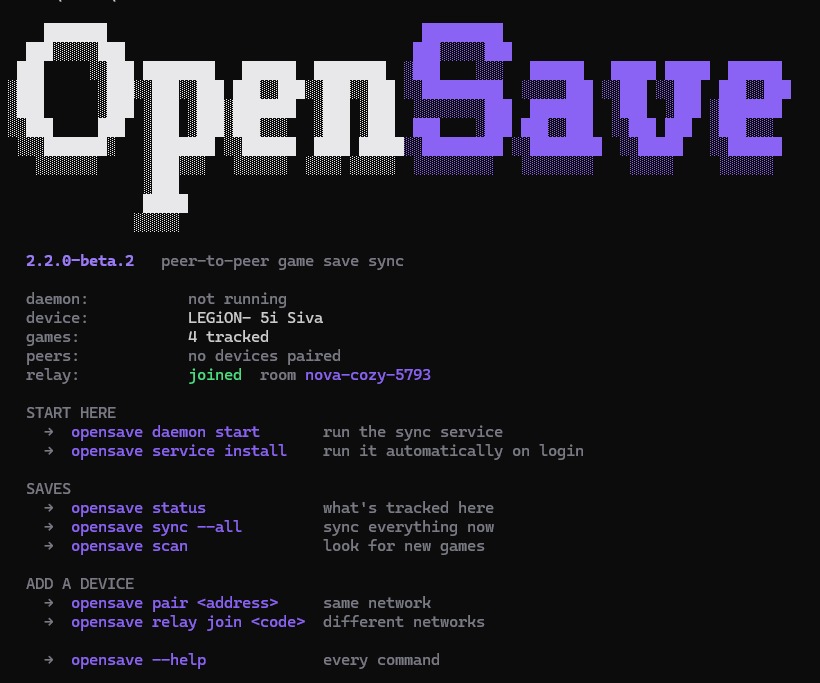
opensave
The OpenSave command line status panel: a large ASCII OpenSave wordmark in white and purple, followed by the version, whether the daemon is running, the device name, how many games are tracked, paired devices, and relay status — then suggested next commands grouped under Start here, Saves, and Add a device.
Type opensave on its own and it tells you what's happening right now, plus what to do next.
Why bother

Three places a window gets in the way.

If you're happy with the desktop app, keep using it — this isn't a replacement. It exists for the places a desktop app can't reach.

🎮

A Steam Deck in Game Mode

Game Mode is not a desktop. Switching out to click a sync button and back again is enough friction that people simply stop bothering. Install the CLI as a background service once and your Deck syncs on its own — you never see it, you never think about it.

🖥️

A machine with no screen

A home server, a NAS, or an old PC acting as the always-on device your laptop and Deck sync through. You reach it over SSH; there's no desktop session to run a window in. The CLI runs there happily as a systemd service.

⌨️

You just prefer the terminal

Some people are simply faster in a shell. Every command speaks --json too, so you can wire OpenSave into your own scripts — snapshot before a risky boss fight, show sync status in a status bar, whatever you like.

What it actually is

Not a cut-down version.

One file, nothing to install alongside it

A single native binary, around 15 MB. No Python, no Node, no runtime, no dependencies to chase. Copy it somewhere on your PATH and it works.

The same engine as the app

It isn't a thin wrapper that shells out to something else. The desktop app and the CLI are the same sync engine compiled into two front ends — identical save detection, identical block-level transfer, identical conflict rules.

The same data, on the same machine

Both read and write ~/.opensave. Track a game in the app and it's there in the CLI a second later, and the other way round. You can use both on one machine without them fighting.

It talks to a running daemon when there is one

Commands that need live state (peers, sync progress) speak to whichever daemon is already running — the app's, or one you started yourself. Commands that only touch local data work whether anything is running or not.

Install

One line, and it sorts itself out.

The installer picks the right build for your system, puts it on your PATH, and shows you the status panel when it's done. No manual steps.

Linux & Steam Deck

install — Linux & Steam Deck
$ curl -fsSL https://raw.githubusercontent.com/Liquid-co/OpenSave/main/scripts/install.sh | sh

Windows (PowerShell)

install — Windows PowerShell
> irm https://raw.githubusercontent.com/Liquid-co/OpenSave/main/scripts/install.ps1 | iex

Downloads are checked against the SHA256 checksums published with each release — piping a script into a shell is enough trust on its own, so the installer refuses to install bytes it can't vouch for. It installs to your user folder, so it never asks for admin rights.

Three names, one program

After installing you can type opensave, or os if you like short things. opensave-cli also works — it's the name the Steam Deck plugin and the Linux packages use internally. If something on your system already answers to os, the installer notices and leaves it alone rather than shadowing it.

Keeping it current

opensave update replaces the binary in place from the latest release. opensave update --check just tells you whether there's a newer one. Pre-release builds are never offered automatically — you have to go and get those yourself.

Your first five minutes

From nothing to syncing.

Run these in order on the first device, then the marked ones on the second.

1

Find your saves

Scans the places games actually keep saves: Steam, Proton prefixes, emulators, Heroic and Lutris, plus a community database covering 20,000+ titles.

find your saves
$ opensave scan
2

Track the ones you care about

Scanning shows you what's out there; tracking is you saying "watch this one". You can also point it at a folder by hand for anything the scan missed.

track a game
$ opensave add "Elden Ring" ~/.local/share/EldenRing
3

Start the sync service

This is the part that watches for changes and talks to your other devices. Run it in a terminal to try it out, or install it as a service so it starts on login and you never think about it again.

start the sync service
$ opensave daemon start
  # or, permanently:
$ opensave service install
4

Pair your second device

On the same network, point one device at the other's address. Pairing is mutual — the second device has to approve it, so nobody can pair with you unilaterally.

pair a second device
$ opensave pair 192.168.1.42
  # then on the other device:
$ opensave pair requests
$ opensave pair approve node_a1b2c3…

On different networks instead? Run opensave relay join <code> with the same made-up code on both devices and they'll find each other through the relay — no port forwarding, and the relay only passes encrypted data through, it never stores your saves.

5

That's it

From here saves sync on their own whenever they change. These are the commands you'd actually use day to day.

day to day
$ opensave              # what's happening right now
$ opensave status       # what's tracked here
$ opensave sync --all   # sync everything now
Steam Deck

Set it up once, in Desktop Mode. Never open it again.

The whole point is that after this, your Deck syncs while you're in Game Mode and you never have to leave a game to make it happen.

Steam Deck — one-time setup
# 1. install (Desktop Mode, Konsole)
$ curl -fsSL https://raw.githubusercontent.com/Liquid-co/OpenSave/main/scripts/install.sh | sh

# 2. find your saves and start the service
$ opensave scan
$ opensave service install
$ systemctl --user enable --now opensave-daemon

# 3. keep it running when you're not logged in
$ sudo loginctl enable-linger $USER

# 4. pair with your PC (same network)
$ opensave pair 192.168.1.42

Why the linger step matters

Without it, SteamOS stops your background services the moment you switch to Game Mode — which is precisely when you want syncing to be happening. That one command is the difference between "it works" and "it works only while I'm looking at it".

Not just Steam games

Save detection covers Wine and Proton prefixes from Heroic, Bottles and Lutris, not just Steam's own. If a game keeps its saves inside a prefix, OpenSave finds them.

There's a Game Mode plugin as well

If you use Decky Loader, the OpenSave plugin puts sync, snapshots and conflict resolution in the Game Mode quick-access panel, with live progress. It drives the same daemon the CLI does — the two work together.

Storage stays sane

Only the parts of a save that actually changed get transferred, and snapshot retention limits keep history from growing without bound. Useful on a device where the SSD fills up fast.

What changed in 2.2

It used to be a helper. Now it's the whole thing.

Earlier versions could track a game and start a daemon, and that was about it. Anything else meant opening the desktop app — which defeats the point on a device that doesn't have one.

Everything the app can do

Pairing and approvals, conflict resolution, snapshots and branches, rollback, cloud backup, browsing inside a snapshot and restoring a single file out of it, per-game settings, linking games across devices, excluding folders from scans. The one honest exception is signing into Google Drive, Dropbox or OneDrive, which needs a browser for consent — WebDAV and local/NAS providers work entirely from the terminal.

Output you can actually read

Grouped sections, aligned columns and colour used to mean something rather than to decorate. It detects when output isn't a terminal and drops the styling, so piping to a file or a log gives you clean text.

It tells you what to do next

Running opensave with no arguments shows the current state and suggests the commands that make sense from there — rather than dumping a wall of help at someone who just wants to know if it's working.

Tab completion, a man page, an installer

Completions for bash, zsh and fish, a proper man opensave, and installers for both platforms that handle PATH for you. Completions are generated from the same list that builds the help, so they can't drift apart.

Built for scripts

--json works on every command, and exit codes mean what you'd expect, so you can drive OpenSave from a shell script or a status bar without parsing human-readable text.

Updates itself

opensave update pulls the latest release and swaps the binary in place. No package manager needed, and no reinstalling to pick up a fix.

Reference

Every command, grouped.

opensave --help prints this too, and --json works on all of them.

Games

scan
Auto-detect saves on this machine
add <name> <path>
Track a folder or file
remove <game>
Stop tracking (files are kept)
status
What's tracked, and its branches
game <game> set …
Per-game settings
launch <game>
Start the game

Sync & devices

sync [game|--all]
Sync now
peers
Paired and discovered devices
pair <address>
Ask a device to pair
pair approve|reject
Handle incoming requests
relay join <code>
Sync across networks
conflicts
Saves waiting on a decision
resolve <game> …
keep-both, keep-local, keep-remote

History

snapshot <game>
Save a restore point
snapshots <game>
List them
rollback <game> <id>
Go back to one
branch / checkout
Parallel playthroughs
files <game> <id>
Look inside a snapshot
export <game> <dir>
Copy the save out as-is
backup export|import
Portable archive

Setup & service

daemon start|status|stop
The sync service
service install
Run it on login (Linux)
config [set …]
Settings
exclude / scanpath
Where to scan, and where not to
link / unlink
Treat two games as the same
cloud …
Cloud backup
completion bash|zsh|fish
Tab completion
update [--check]
Update this binary
Scripting

Machine-readable, on purpose.

Add --json to anything and you get structured output instead of a pretty table — no scraping, no guessing.

scripting with --json
# is the daemon up, and how many games does it know about?
$ opensave daemon status --json | jq .gameCount

# the newest snapshot id for a game
$ opensave snapshots elden-ring --json | jq -r '.[0].id'

# snapshot everything before something risky
$ opensave status --json | jq -r '.games[].id' \
    | xargs -I{} opensave snapshot {} "before the patch"
Questions

The usual ones.

Do I need the desktop app as well?

No. The CLI is complete on its own — that's the point of it. The one thing it can't do is sign you into Google Drive, Dropbox or OneDrive, because those need a browser to grant consent. WebDAV, webhooks and local/NAS backup targets work entirely from the terminal.

Can I run both on the same machine?

Yes. They share one database and one set of saves, so tracking a game in one shows up in the other. Only one sync service runs at a time — if the app is already running, the CLI talks to that one rather than starting a second.

Is it slower or more limited than the app?

Neither. It's the same sync engine — same save detection, same block-level transfer that only sends the parts of a file that changed, same conflict rules. The window is the only difference.

What happens if two devices change the same save?

OpenSave stops and asks rather than picking a winner. opensave conflicts shows what's waiting, and opensave resolve settles it — keep-both is the safe option, which keeps your version and parks the other device's on a separate branch so nothing is lost. Both devices confirm independently; neither can overwrite the other on its own.

Does it phone home?

No accounts, no telemetry, no analytics. It talks to your own devices, to GitHub when you ask it to check for updates, and to the relay only if you've turned on internet sync — and the relay just passes encrypted data between your devices without storing any of it.

Does it work on macOS?

Not yet — there are no published macOS builds. It compiles from source if you have Go installed (go build ./cmd/opensave-cli), but that path isn't tested the way Windows and Linux are.